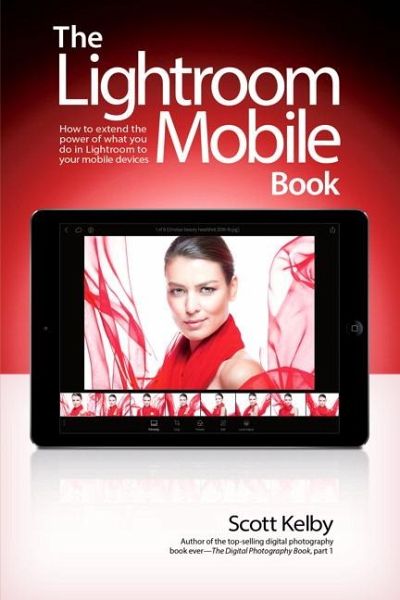
Scott Kelby, the #1 best-selling Lightroom book author, brings you everything you need to know about Lightroom Mobile in his newest book. Lightroom Mobile, which is kind of like an extension of the regular desktop version of Lightroom, allows users to use Lightroom on their iPads, iPhones, and Android devices. This is really handy because it lets you do a lot of the main things you use the desktop version for, but with Lightroom Mobile, you can easily do them on your mobile device. Plus, it’s “free,” and that’s a hard price to beat. The Lightroom Mobile Book, first shows you how to get…mehr
Scott Kelby, the #1 best-selling Lightroom book author, brings you everything you need to know about Lightroom Mobile in his newest book. Lightroom Mobile, which is kind of like an extension of the regular desktop version of Lightroom, allows users to use Lightroom on their iPads, iPhones, and Android devices. This is really handy because it lets you do a lot of the main things you use the desktop version for, but with Lightroom Mobile, you can easily do them on your mobile device. Plus, it’s “free,” and that’s a hard price to beat. The Lightroom Mobile Book, first shows you how to get up and running quickly. Then, comes the fun stuff, like telling Lightroom on your computer which collections you want access to over in Lightroom Mobile. Plus, you’ll learn how to manage your collections, add Pick flags and star ratings, move images, play slide shows, and a bunch of other important stuff you’ll want to know right up front. Then, you’ll learn how to edit your images in Lightroom Mobile, using the same Basic panel features found in the desktop version of Lightroom–it’s the same sliders that do the same thing, and it’s even in the same order. You’ll also learn how to easily crop images, as well as use the in-app camera. You’ll learn step by step how to set up Lightroom on your desktop and mobile device, so that during a shoot, you can hand your client your tablet and not only can they see the images coming in live as you shoot, they can make their own Picks, comments, and even share the link with someone at a different location, so they can be part of the shoot, and the approval process, too! There are lots of other handy features you’ll want to know about, and Scott tells you exactly how to use them just like he was sitting there beside you, using the same casual style as if he were telling a friend. In The Lightroom Mobile Book, Scott brings the whole process together in a clear, concise, and visual way. There is no faster, more straight-to-the-point, or more fun way to learn Lightroom Mobile than with this groundbreaking book.
Scott is Editor, Publisher, and co-founder of Photoshop User magazine, and is co-host of The Grid, the weekly, live talk show for photographers. He is also President and CEO of KelbyOne, an online educational community for learning Photo¿shop, Lightroom, and photography. Scott is a photographer, designer, and award-winning author of more than 80 books, including Photoshop for Lightroom Users, Professional Portrait Retouching Techniques for Photographers Using Photoshop, Light It, Shoot It, Retouch It: Learn Step by Step How to Go from Empty Studio to Finished Image, The Adobe Photoshop Book for Digital Photographers, The Adobe Photoshop Lightroom Book for Digital Photographers, and The Best of The Digital Photography Book Series. For the past six years, Scott has been honored with the distinction of being the #1 best-selling author of photography technique books. His book, The Digital Photography Book, part 1, is now the best-selling book on digital photography in history. His books have been translated into dozens of different languages, including Chinese, Russian, Spanish, Korean, Polish, Taiwanese, French, German, Italian, Japanese, Dutch, Arabic, Swedish, Turkish, Hebrew, and Portuguese, among others. He is a recipient of the prestigious ASP International Award, presented annually by the American Society of Photographers for “…contributions in a special or significant way to the ideals of Professional Photography as an art and a science.” And, he also a recent recipient of the prestigious HIPA Award for his contributions to photography education worldwide. Scott is Training Director for the official Adobe Photoshop Seminar Tour and Conference Technical Chair for the Photoshop World Conference & Expo. He’s a frequent speaker at conferences and trade shows around the world, is featured in a series of online learning courses at KelbyOne.com, and has been training Photoshop users and photographers since 1993. For more information on Scott, visit him at: His daily blog: scottkelby.com Twitter: @scottkelby Instagram: instagram.com/scottkelby Facebook: facebook.com/skelby Google+: Scottgplus.com
Inhaltsangabe
Chapter One: Getting Your Images Into Lightroom Mobile Download and Sign In to Lightroom Mobile Choose Your Options Sign In to Lightroom on Your Desktop Turn On Sync with Lightroom Mobile Choosing Which Collections to Sync You Can Only Sync One Catalog Chapter Two: Working with Collections
Creating a New Collection Adding Images to a New Collection Seeing Your New Collection on Your Desktop Seeing Where Your Original Images Are Saved Choosing How to Sort Your Collections Seeing Your Images in Grid View Changing the Size of Your Thumbnails Choosing Grid View Options Choosing Your Image Sorting Options Using Segmented View Manually Rearranging Your Thumbnails Setting a Cover Photo Copying and Moving Images Selecting Multiple Images Seeing an Image in Loupe View Zooming In Hiding the Loupe View Interface Using the Filmstrip Starting a Slide Show Flagging Your Images as Picks or Rejects Adding Star Ratings Using Filters to See Your Best Images Seeing Your Picks and Star Ratings on Your Desktop Chapter Three: Editing Your Images
Editing Your Images Setting the White Balance Using the Temperature and Tint Sliders Resetting an Edit Slider Using the White Balance Selector Tool Adjusting the Overall Brightness (Exposure) Automatically Correcting Your Images with Auto Tone Adding Contrast Fixing Brightest Areas (Highlights) Dealing with Highlight Problems (Clipping) Fixing Backlit Photos or Opening Up Shadows Expanding Your Tonal Range (Whites and Blacks) Bringing Out Texture with Clarity Adding More Color to Your Image Desaturating an Image Adding Pick Flags and Star Ratings While Editing Applying Changes Made to One Photo to Other Photos Seeing a Before/After Resetting Your Image Editing in Camera Roll Editing in a Web Browser Seeing (and Adding) Metadata in Lightroom Web Chapter Four: Going Beyond the Basic Edits
Using the Tone Curve: Point Curve Using the Tone Curve: Parametric Curve Using the Tone Curve: RGB Channels Adding Edge Darkening (Vignetting) Converting to Black and White Creating Split-Toning Effects Adjusting Individual Colors in Your Image Fixing Hazy Images Fixing Skies (and Other Stuff) with the Graduated (Linear) Filter Creating Spotlight Effects Using the Radial Filter Applying Auto Lens Corrections Editing RAW Photos from Your DSLR Applying Develop Module Presets Using Preset Previews Adjusting Presets Applying More Than One Preset Copying-and-Pasting Settings from One Image to Another Copying-and-Pasting Features That Aren’t in Lightroom Mobile Making Collections of Adjust-ments Not in Lightroom Mobile Making a Collection for Third-Party Presets Chapter Five: Cropping and Stuff Like Cropping
Cropping an Image Applying Preset Cropping Ratios Free-Form Cropping Straightening an Image Manually Rotate an Image Rotating an Image 90º Flipping an Image Flipping the Crop to Tall Chapter Six: Sharing Your Images
Sharing an Image Sharing a Collection Opening an Image in Another App Share or Open with Metadata. Or Not Create in Spark Page Saving to Camera Roll (or Gallery) View Images in Presentation Mode Viewing Images on Apple TV Chapter Seven: Sharing Your Shoot Live Shoot Tethered Set Up Your Tethered Shoot Create a New Collection Sync Your New Collection Send Images to Your Target Collection What Your Client Sees Have Your Client Add Flags or Star Ratings Make Your Collection Public What Your Offsite Client Sees Favorites Made Offsite Comments Made Offsite What You’ll See in Lightroom Chapter Eight: Using the Built-In Camera
Accessing the Camera Using the Camera Features Shooting RAW Images with Android Camera Phones Previewing Your Last Capture Setting a Custom White Balance iPhone Users: Get to Lightroom’s Camera Faster Using Live Shooting Presets Finding the Shots You Just Took Chapter Nine: All the Other Stuff
Applying Your Copyright Info Automatically Using Keyboard Shortcuts You Can Use It Without Using Lightroom on Your Computer Finding Images That Aren’t Syncing Moving Pop-Up Menus for Easier Editing The Benefits of Working Offline Working with Video Turning a Collection Into a Video Automatically Why Download the High-Resolution Version Clear Your Cache If You Run Out of Space
Chapter One: Getting Your Images Into Lightroom Mobile Download and Sign In to Lightroom Mobile Choose Your Options Sign In to Lightroom on Your Desktop Turn On Sync with Lightroom Mobile Choosing Which Collections to Sync You Can Only Sync One Catalog Chapter Two: Working with Collections
Creating a New Collection Adding Images to a New Collection Seeing Your New Collection on Your Desktop Seeing Where Your Original Images Are Saved Choosing How to Sort Your Collections Seeing Your Images in Grid View Changing the Size of Your Thumbnails Choosing Grid View Options Choosing Your Image Sorting Options Using Segmented View Manually Rearranging Your Thumbnails Setting a Cover Photo Copying and Moving Images Selecting Multiple Images Seeing an Image in Loupe View Zooming In Hiding the Loupe View Interface Using the Filmstrip Starting a Slide Show Flagging Your Images as Picks or Rejects Adding Star Ratings Using Filters to See Your Best Images Seeing Your Picks and Star Ratings on Your Desktop Chapter Three: Editing Your Images
Editing Your Images Setting the White Balance Using the Temperature and Tint Sliders Resetting an Edit Slider Using the White Balance Selector Tool Adjusting the Overall Brightness (Exposure) Automatically Correcting Your Images with Auto Tone Adding Contrast Fixing Brightest Areas (Highlights) Dealing with Highlight Problems (Clipping) Fixing Backlit Photos or Opening Up Shadows Expanding Your Tonal Range (Whites and Blacks) Bringing Out Texture with Clarity Adding More Color to Your Image Desaturating an Image Adding Pick Flags and Star Ratings While Editing Applying Changes Made to One Photo to Other Photos Seeing a Before/After Resetting Your Image Editing in Camera Roll Editing in a Web Browser Seeing (and Adding) Metadata in Lightroom Web Chapter Four: Going Beyond the Basic Edits
Using the Tone Curve: Point Curve Using the Tone Curve: Parametric Curve Using the Tone Curve: RGB Channels Adding Edge Darkening (Vignetting) Converting to Black and White Creating Split-Toning Effects Adjusting Individual Colors in Your Image Fixing Hazy Images Fixing Skies (and Other Stuff) with the Graduated (Linear) Filter Creating Spotlight Effects Using the Radial Filter Applying Auto Lens Corrections Editing RAW Photos from Your DSLR Applying Develop Module Presets Using Preset Previews Adjusting Presets Applying More Than One Preset Copying-and-Pasting Settings from One Image to Another Copying-and-Pasting Features That Aren’t in Lightroom Mobile Making Collections of Adjust-ments Not in Lightroom Mobile Making a Collection for Third-Party Presets Chapter Five: Cropping and Stuff Like Cropping
Cropping an Image Applying Preset Cropping Ratios Free-Form Cropping Straightening an Image Manually Rotate an Image Rotating an Image 90º Flipping an Image Flipping the Crop to Tall Chapter Six: Sharing Your Images
Sharing an Image Sharing a Collection Opening an Image in Another App Share or Open with Metadata. Or Not Create in Spark Page Saving to Camera Roll (or Gallery) View Images in Presentation Mode Viewing Images on Apple TV Chapter Seven: Sharing Your Shoot Live Shoot Tethered Set Up Your Tethered Shoot Create a New Collection Sync Your New Collection Send Images to Your Target Collection What Your Client Sees Have Your Client Add Flags or Star Ratings Make Your Collection Public What Your Offsite Client Sees Favorites Made Offsite Comments Made Offsite What You’ll See in Lightroom Chapter Eight: Using the Built-In Camera
Accessing the Camera Using the Camera Features Shooting RAW Images with Android Camera Phones Previewing Your Last Capture Setting a Custom White Balance iPhone Users: Get to Lightroom’s Camera Faster Using Live Shooting Presets Finding the Shots You Just Took Chapter Nine: All the Other Stuff
Applying Your Copyright Info Automatically Using Keyboard Shortcuts You Can Use It Without Using Lightroom on Your Computer Finding Images That Aren’t Syncing Moving Pop-Up Menus for Easier Editing The Benefits of Working Offline Working with Video Turning a Collection Into a Video Automatically Why Download the High-Resolution Version Clear Your Cache If You Run Out of Space
Es gelten unsere Allgemeinen Geschäftsbedingungen: www.buecher.de/agb
Impressum
www.buecher.de ist ein Internetauftritt der buecher.de internetstores GmbH
Geschäftsführung: Monica Sawhney | Roland Kölbl | Günter Hilger
Sitz der Gesellschaft: Batheyer Straße 115 - 117, 58099 Hagen
Postanschrift: Bürgermeister-Wegele-Str. 12, 86167 Augsburg
Amtsgericht Hagen HRB 13257
Steuernummer: 321/5800/1497
USt-IdNr: DE450055826