Joli Ballew
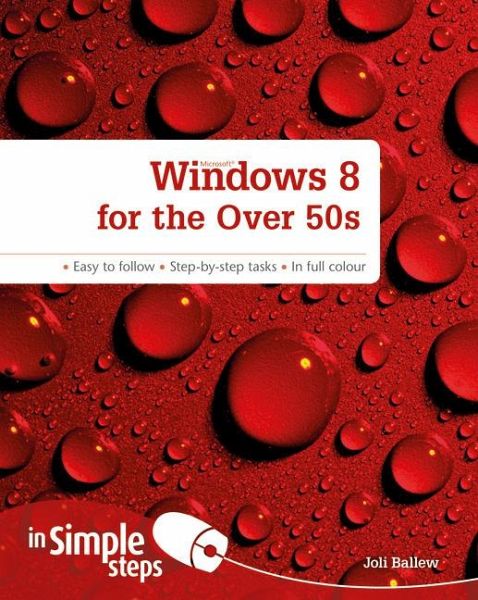
Windows 8 for the Over 50s In Simple Steps
Joli Ballew
Windows 8 for the Over 50s In Simple Steps
- Broschiertes Buch
- Merkliste
- Auf die Merkliste
- Bewerten Bewerten
- Teilen
- Produkt teilen
- Produkterinnerung
- Produkterinnerung
Discover everything you want to know about Microsoft's newest version of Windows in this easy-to-use guide; from the most essential tasks that you'll want to perform, to solving the most common problems you'll encounter.
Andere Kunden interessierten sich auch für
Tom MyerSocial Networking for the Over 50s In Simple Steps18,99 €
Marc CampbellDigital Photography for the Over 50s In Simple Steps18,99 €
Heather MorrisStarting up an Online Business in Simple Steps20,99 €
Ashish AgrawalExam Ref AZ-305 Designing Microsoft Azure Infrastructure Solutions28,99 €
Jim CheshireExam Ref AZ-900 Microsoft Azure Fundamentals25,99 €
Craig ZackerExam Ref PL-900 Microsoft Power Platform Fundamentals29,99 €
Michael WashamExam Ref AZ-103 Microsoft Azure Administrator42,99 €-
-
Discover everything you want to know about Microsoft's newest version of Windows in this easy-to-use guide; from the most essential tasks that you'll want to perform, to solving the most common problems you'll encounter.
Produktdetails
- Produktdetails
- Verlag: Pearson
- Seitenzahl: 232
- Erscheinungstermin: 21. Dezember 2012
- Englisch
- Abmessung: 235mm x 187mm x 14mm
- Gewicht: 480g
- ISBN-13: 9780273784166
- ISBN-10: 0273784161
- Artikelnr.: 36161883
- Herstellerkennzeichnung
- Libri GmbH
- Europaallee 1
- 36244 Bad Hersfeld
- gpsr@libri.de
- Verlag: Pearson
- Seitenzahl: 232
- Erscheinungstermin: 21. Dezember 2012
- Englisch
- Abmessung: 235mm x 187mm x 14mm
- Gewicht: 480g
- ISBN-13: 9780273784166
- ISBN-10: 0273784161
- Artikelnr.: 36161883
- Herstellerkennzeichnung
- Libri GmbH
- Europaallee 1
- 36244 Bad Hersfeld
- gpsr@libri.de
Top 10 Windows 8 Tips for the Over 50s
1. Shut Down Windows
2. Turn Live Tiles Off or On
3. Move Among Apps Quickly
4. Make icons easier to see in File Explorer
5. Back up data quickly and easily
6. Connect to a Free Wireless Hot Spot
7. Pin a Website to the Start Screen
8. Email a Photo
9. Install a digital camera, web cam, or smart phone
10. Install Anti-Virus Software
1 Learn Windows 8 Basics
* Know What Kind of Device you have
* Set up Windows 8
* Consider a Microsoft Account
* Log In to Windows 8
* Explore the Start Screen
* Open and Close an App
* Access Charms
* Understand Charms
* Access the Traditional Desktop
* Explore File Explorer
* Switch to a Microsoft Account
* Shut Down Windows
2 Make Windows 8 Easier to Use, See, and Navigate
* Change the Volume
* Change the Screen Resolution
* Personalize the Color of the Start Screen Background
* Turn Live Tiles Off or On
* Make App Tiles Larger or Smaller
* Reposition Apps on the Start Screen
* Add a Tile to the Start Screen
* Remove a Tile from the Start Screen
* Log In with Fewer Keystrokes
* Create Shortcuts on the Desktop
* Pin Items to the Taskbar
* Explore Accessibility Options
* Explore Touch Techniques
3 Use Apps to Be More Efficient
* Check Your Local Weather
* Throw Away your Physical Maps
* Travel without Leaving your Home
* Get the Latest Sports News and Follow a Team
* Switch to a Digital Personal Calendar
* Create a New Event in Calendar
* Explore your Piece of the Cloud
* Upload a File to Sky Drive
* Access Your Files on Sky Drive from Anywhere
* Shop the Windows Store
* Use your Free App
* Move among Open Apps Quickly
4 Use desktop Applications
* Find the desktop Applications
* Write a letter with Notepad
* Save a letter with Notepad
* Print a letter with Notepad
* Use the calculator
* Take a picture of what’s on the screen
* Share a screen shot
* Record and save a sound clip
* Play a sound clip
* Explore other desktop apps
5 Locate and Manage the Data you keep and Acquire
* Explore your Libraries
* Save data to a library
* Create a Folder or Subfolder
* Copy or Move a File or Folder
* Delete a File or Folder
* Explore your personal folders
* Search for a File
* Browse for a file from a desktop app
* Change the Size of an Open Window
* Use Snap, Peek, and Shake
* Make icons easier to see
* Move data to Public Folders
* Back up data quickl
1. Shut Down Windows
2. Turn Live Tiles Off or On
3. Move Among Apps Quickly
4. Make icons easier to see in File Explorer
5. Back up data quickly and easily
6. Connect to a Free Wireless Hot Spot
7. Pin a Website to the Start Screen
8. Email a Photo
9. Install a digital camera, web cam, or smart phone
10. Install Anti-Virus Software
1 Learn Windows 8 Basics
* Know What Kind of Device you have
* Set up Windows 8
* Consider a Microsoft Account
* Log In to Windows 8
* Explore the Start Screen
* Open and Close an App
* Access Charms
* Understand Charms
* Access the Traditional Desktop
* Explore File Explorer
* Switch to a Microsoft Account
* Shut Down Windows
2 Make Windows 8 Easier to Use, See, and Navigate
* Change the Volume
* Change the Screen Resolution
* Personalize the Color of the Start Screen Background
* Turn Live Tiles Off or On
* Make App Tiles Larger or Smaller
* Reposition Apps on the Start Screen
* Add a Tile to the Start Screen
* Remove a Tile from the Start Screen
* Log In with Fewer Keystrokes
* Create Shortcuts on the Desktop
* Pin Items to the Taskbar
* Explore Accessibility Options
* Explore Touch Techniques
3 Use Apps to Be More Efficient
* Check Your Local Weather
* Throw Away your Physical Maps
* Travel without Leaving your Home
* Get the Latest Sports News and Follow a Team
* Switch to a Digital Personal Calendar
* Create a New Event in Calendar
* Explore your Piece of the Cloud
* Upload a File to Sky Drive
* Access Your Files on Sky Drive from Anywhere
* Shop the Windows Store
* Use your Free App
* Move among Open Apps Quickly
4 Use desktop Applications
* Find the desktop Applications
* Write a letter with Notepad
* Save a letter with Notepad
* Print a letter with Notepad
* Use the calculator
* Take a picture of what’s on the screen
* Share a screen shot
* Record and save a sound clip
* Play a sound clip
* Explore other desktop apps
5 Locate and Manage the Data you keep and Acquire
* Explore your Libraries
* Save data to a library
* Create a Folder or Subfolder
* Copy or Move a File or Folder
* Delete a File or Folder
* Explore your personal folders
* Search for a File
* Browse for a file from a desktop app
* Change the Size of an Open Window
* Use Snap, Peek, and Shake
* Make icons easier to see
* Move data to Public Folders
* Back up data quickl
Top 10 Windows 8 Tips for the Over 50s
1. Shut Down Windows
2. Turn Live Tiles Off or On
3. Move Among Apps Quickly
4. Make icons easier to see in File Explorer
5. Back up data quickly and easily
6. Connect to a Free Wireless Hot Spot
7. Pin a Website to the Start Screen
8. Email a Photo
9. Install a digital camera, web cam, or smart phone
10. Install Anti-Virus Software
1 Learn Windows 8 Basics
* Know What Kind of Device you have
* Set up Windows 8
* Consider a Microsoft Account
* Log In to Windows 8
* Explore the Start Screen
* Open and Close an App
* Access Charms
* Understand Charms
* Access the Traditional Desktop
* Explore File Explorer
* Switch to a Microsoft Account
* Shut Down Windows
2 Make Windows 8 Easier to Use, See, and Navigate
* Change the Volume
* Change the Screen Resolution
* Personalize the Color of the Start Screen Background
* Turn Live Tiles Off or On
* Make App Tiles Larger or Smaller
* Reposition Apps on the Start Screen
* Add a Tile to the Start Screen
* Remove a Tile from the Start Screen
* Log In with Fewer Keystrokes
* Create Shortcuts on the Desktop
* Pin Items to the Taskbar
* Explore Accessibility Options
* Explore Touch Techniques
3 Use Apps to Be More Efficient
* Check Your Local Weather
* Throw Away your Physical Maps
* Travel without Leaving your Home
* Get the Latest Sports News and Follow a Team
* Switch to a Digital Personal Calendar
* Create a New Event in Calendar
* Explore your Piece of the Cloud
* Upload a File to Sky Drive
* Access Your Files on Sky Drive from Anywhere
* Shop the Windows Store
* Use your Free App
* Move among Open Apps Quickly
4 Use desktop Applications
* Find the desktop Applications
* Write a letter with Notepad
* Save a letter with Notepad
* Print a letter with Notepad
* Use the calculator
* Take a picture of what’s on the screen
* Share a screen shot
* Record and save a sound clip
* Play a sound clip
* Explore other desktop apps
5 Locate and Manage the Data you keep and Acquire
* Explore your Libraries
* Save data to a library
* Create a Folder or Subfolder
* Copy or Move a File or Folder
* Delete a File or Folder
* Explore your personal folders
* Search for a File
* Browse for a file from a desktop app
* Change the Size of an Open Window
* Use Snap, Peek, and Shake
* Make icons easier to see
* Move data to Public Folders
* Back up data quickl
1. Shut Down Windows
2. Turn Live Tiles Off or On
3. Move Among Apps Quickly
4. Make icons easier to see in File Explorer
5. Back up data quickly and easily
6. Connect to a Free Wireless Hot Spot
7. Pin a Website to the Start Screen
8. Email a Photo
9. Install a digital camera, web cam, or smart phone
10. Install Anti-Virus Software
1 Learn Windows 8 Basics
* Know What Kind of Device you have
* Set up Windows 8
* Consider a Microsoft Account
* Log In to Windows 8
* Explore the Start Screen
* Open and Close an App
* Access Charms
* Understand Charms
* Access the Traditional Desktop
* Explore File Explorer
* Switch to a Microsoft Account
* Shut Down Windows
2 Make Windows 8 Easier to Use, See, and Navigate
* Change the Volume
* Change the Screen Resolution
* Personalize the Color of the Start Screen Background
* Turn Live Tiles Off or On
* Make App Tiles Larger or Smaller
* Reposition Apps on the Start Screen
* Add a Tile to the Start Screen
* Remove a Tile from the Start Screen
* Log In with Fewer Keystrokes
* Create Shortcuts on the Desktop
* Pin Items to the Taskbar
* Explore Accessibility Options
* Explore Touch Techniques
3 Use Apps to Be More Efficient
* Check Your Local Weather
* Throw Away your Physical Maps
* Travel without Leaving your Home
* Get the Latest Sports News and Follow a Team
* Switch to a Digital Personal Calendar
* Create a New Event in Calendar
* Explore your Piece of the Cloud
* Upload a File to Sky Drive
* Access Your Files on Sky Drive from Anywhere
* Shop the Windows Store
* Use your Free App
* Move among Open Apps Quickly
4 Use desktop Applications
* Find the desktop Applications
* Write a letter with Notepad
* Save a letter with Notepad
* Print a letter with Notepad
* Use the calculator
* Take a picture of what’s on the screen
* Share a screen shot
* Record and save a sound clip
* Play a sound clip
* Explore other desktop apps
5 Locate and Manage the Data you keep and Acquire
* Explore your Libraries
* Save data to a library
* Create a Folder or Subfolder
* Copy or Move a File or Folder
* Delete a File or Folder
* Explore your personal folders
* Search for a File
* Browse for a file from a desktop app
* Change the Size of an Open Window
* Use Snap, Peek, and Shake
* Make icons easier to see
* Move data to Public Folders
* Back up data quickl